DIAGNOSTICS / REBUILD

Our diagnostic fee is $120/hr with a $50 minimum. We offer these “flat rate” options to make it easier.

  • Basic – Quick Diagnostics: We do a quick hardware and software check for any obvious problems. We also do a basic malware/virus scan (does not include removal).
  • Advanced Diagnostics: We do a thorough diagnostic scan to test hardware and software as well as finding and removing any threats that do not require a clean install. This option does not cover situations where we have to remove internal hardware such as CPU or Motherboard. In some cases, for badly infected computers, we do recommend a clean install because we simply cannot guarantee threat removal otherwise.
  • Premium Diagnostics with Benchmarking: If we have to basically take your computer apart and put it back together again, this is the option. Used to diagnose serious issues that will likely require the replacement of essential hardware such as the CPU and/or Motherboard. Includes benchmarking if appropriate (GPU/CPU/RAM/Storage Device).
  • Premium Diagnostics with Rebuild: If we have to take your computer apart and rebuild it, this is the option. Includes Premium Diagnostics, Cooling System Refresh, Cable Management, LED Management, OS Installation (if needed) and Benchmarking for GPU/CPU/RAM/Storage Device (unless there is no Operating System present).

Your “Storage Device” is where the operating system (and usually all of your data) is stored. This is completely different from RAM.

The first selection “Storage Device Options” is just asking what capacity storage device you want (if any).  1TB is double the size of a 500GB drive.

Obviously “No Change” means we are not replacing your current storage device and you can ignore the rest of this section. This refers only to your PRIMARY (boot) drive. If you want to add or replace a secondary drive, please contact us about that separately.

If you’re replacing your internal storage device, your next option is what sort of storage device you prefer. Please note that Mac computers often have completely different options, so “No Preference” is the best choice there and some computers do NOT have the option to replace their internal storage device.

Solid State Drive: Includes Standard 2.5″ SATA drives and M.2 NVMe drives. They are much faster and consume less power than mechanical drives. Consumer grade solid state drives are usually more stable during their lifespan than mechanical drives, but in my experience they tend to not last as long (average 3-5 years) as mechanical drives. They have no moving parts to wear out, but instead have a maximum number of “Read-Writes” before they die. It is harder to recover data from a solid state drive if it fails.

Mechanical Drive: These drives are either IDE (found in much older computers) or SATA (newer, faster). They have moving parts inside them and can be damaged by drops, falls, hard bumps, heat, etc. I’ve seen mechanical drives last for over a decade, but they are typically expected to last around 5 years. They are slower than Solid State drives but *usually* easier to recover data from if they are failing and caught in time.

If you really want to “geek out” on the differences between the types of storage device, here’s a good article from PC Magazine

Storage Device Preference

  • No Preference: You leave it up to our best judgement. Smart choice!! There typically is no upcharge for this option. 
  • 2.5″ Solid State Drive: If compatible, we replace your current storage device with a standard Solid State Drive. 
  • M.2 Solid State Drive: If compatible, we replace your current storage device with an M.2 (NVMe or SATA) Solid State drive. These drives are considerably faster than a 2.5″ Solid State Drive.
  • Mechanical Drive: Slower, consumes more power, easier to recover data from if it starts to fail.

The “Operating System” is the software that creates your entire environment on your computer. It’s typically either Windows (PC), macOS (Apple/Mac computers) or Linux (you usually know if you have this).

Operating System Options

  • No Change: Obvious – we don’t reinstall or install a different version of your Operating System. 
  • In-Place Upgrade: We attempt to reinstall your current Operating System or install an Operating System Upgrade (such as moving from Windows 10 to Windows 11) without losing any of your data or installed applications. In most cases we do not recommend this option because things can go wrong. Even though we try to do this without losing your data or apps, we always recommend that you choose a data backup option if your data (files, photos, music, documents, etc) is important to you and is not backed up elsewhere.
  • Factory Reset: We attempt to restore your computer to whatever Operating System originally came with your computer. This may require an original installation media from the manufacturer (usually costs extra). This option does NOT keep your user data or any applications you installed.
  • Clean Install: We start with a “clean slate”. We either wipe out your current drive (if you’re not replacing it) or start with a fresh new drive. We install a fresh copy of the Operating System. This option may not include software that originally came with your computer (such as Office, McAfee, Norton, etc). 
  • Custom/Vintage: This is for folks who want something installed on their computer that doesn’t typically come with their computer, such as Linux. It also applies to Operating Systems that are older (anything before Windows 10 for PC).

Updates & Drivers

Updates” refers to the general updates for your Operating System that are provided by the Operating System manufacturer (Microsoft for Windows, Apple for Mac). It does NOT include a major system upgrade, such as moving from Windows 10 to Windows 11. That would be covered under the Operating System section.

Updates are often important for performance and security. Note that while we always recommend a good antivirus program, it DOES NOT replace Operating System security updates.

We always recommend having your Updates and Drivers manually installed because even though they are SUPPOSED to install automatically for most modern computers, they often don’t and can cause issues.

Drivers” refers to the software that makes the hardware in your computer work. Some examples of hardware that often needs drivers manually installed: Sound device, Touchpad/Trackpad, Touchscreen, Graphics (what you see on your screen), Network (ethernet and/or WiFi), Bluetooth, etc.

It’s good to include Updates and Drivers with any maintenance service, but if you are having your Operating System reinstalled, it may be critical unless you are computer savvy and don’t really need this explanation.


Data Backup and Transfer Services

Data” means anything you put on the computer. This includes documents, applications, photos, music, passwords, software licenses, email (sometimes) and more. If you are sure there is nothing stored on the computer that is important to you, then you can ignore this section. Otherwise… read on.

  • Passwords & Software Licenses: We attempt to back up your stored passwords and software licenses. Sometimes we can also save your WiFi password. We cannot guarantee that the saved passwords will be current and some passwords are never available for backup. Software Licenses are used to activate software when it is reinstalled. This is not always available to us.
  • User Data: This includes your personal files, passwords and software licenses.  This option does NOT include applications you installed.
  • Applications: We only try to back up your applications and software licenses. This does not include user data. Applications that are transferred using this method may not work properly and we do not guarantee it.
  • User Data, Passwords, Licenses and Applications: We attempt to back up and transfer all of these things. 

Who wants a dirty computer? Yuck!

Not only is a dirty computer gross, but a clean computer is a happy computer. Dust and grime can cause performance issues or even short out your computer.

**Please understand that if we find evidence of an infestation, such as roaches or bedbugs, we may stop the entire service, seal the computer in a plastic bag and ask that you pick it up. No deposits will be refunded. If we choose to do infestation cleaning, it will cost extra**

  • External: We include this with nearly every service we offer (as needed). We give the outside of the computer a good wipe-down. We vacuum out the ventilation ports (we may recommend a deeper cleaning if dust appears to be heavy). We also vacuum out the keyboard (for laptops) and clean the screen on laptops and All-In-One computers.
  • External and Internal ($50): We do the external cleaning above PLUS open up the computer to vacuum and/or blow out dust.
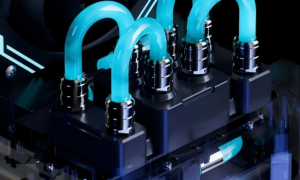
  • Complete with Cooling System Refresh ($150): We do the External and Internal cleaning PLUS we take apart your cooling system to carefully clean dust from fans and install fresh thermal paste, thermal pads or liquid metal (ie: PS5). If your computer has a complex liquid cooling system that requires being “recharged” (refer to image below), we charge hourly. People who have these types of computers are usually aware of it.